Anyswap Exchange User Guide
At present, Anyswap Bridge cannot adapt to the mobile terminal. If you want to cross the assets of the Binance Smart Chain (BSC) to Polygon, you need to log in to the Metamask on the PC terminal for operation.
Chorme download link: https://www.google.com/chrome/
Metamask download link: https://chrome.google.com/webstore/detail/metamask/nkbihfbeogaeaoehlefnkodbefgpgknn
1. Export the private keys of Binance Smart Chain (BSC) single-chain wallet
Importing/Exporting Wallet Private Keys and Mnemonic Phrases
Choose to export the private keys
2. Import the private key into Metamask
Click the avatar page in the upper right corner
Select “Import Account”
Paste the private key
3. Enter Anyswap Bridge
link: https://anyswap.exchange/bridge
4. Connect to Metamask
On Anyswap, Choose MATIC network and click “Connect wallet”
Copy the settings below to set MATIC network on Metamask
Network Name: MATIC
New RPC URL: https://rpc-mainnet.matic.network
Chain ID: 137
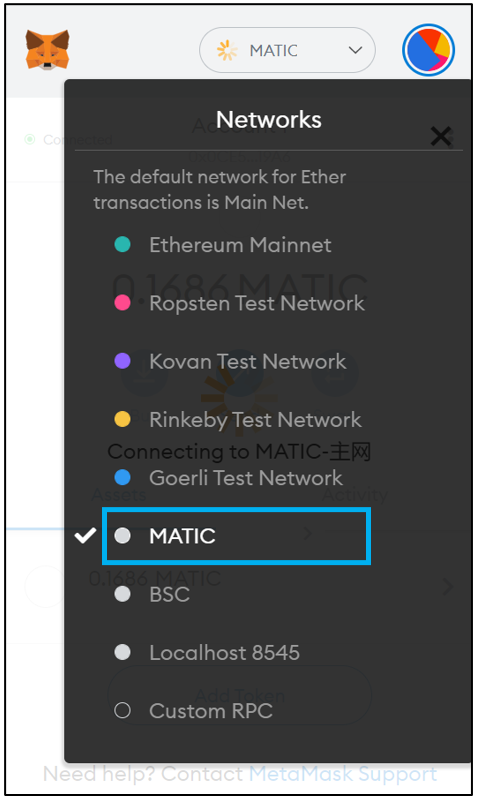
Symbol: MATIC
5. Block Explorer URL: https://polygonscan.com
Take BANANA as an example. Select BANANA, and enter the amout you would like to deposit.
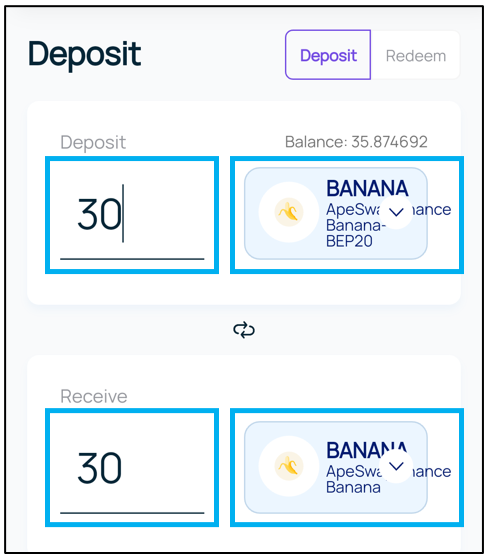
Click “CrossChain Deposit”, and then lick “Confirm” on Metamask to complete Cross-chain deposit
Enter the tutorial page via: https://anyswap-faq.readthedocs.io/en/latest/How%20To%20Setup%20and%20Use%20Anyswap.html#how-to-use-anyswap